
You can prepare Australia Post labels for eligible eBay and Depop orders in one batch using Listalong. Export the orders together, import the CSV into MyPost Business, buy and print the labels, then upload the label PDF back to Listalong to match tracking to the original orders.
This brings the administration from two stores into one packing session. You still choose the appropriate parcel service, pay for postage and lodge the parcels yourself.
I use Listalong for my eBay and Depop stores. This guide focuses on the combined workflow, rather than creating a label for one order at a time. The marketplace and Australia Post guidance linked below was checked on 25 September 2026.
Print labels. Return tracking.
Bring eligible eBay and Depop orders together without retyping each buyer's address and tracking number.
First, check which orders you can include
Use this process for orders where you are allowed to arrange postage through Australia Post yourself. A sale appearing in your store does not automatically mean it belongs in an external label-purchase batch.
| Order situation | What to do |
|---|---|
| eBay permits you to arrange your own postage | Include the eligible order after checking its delivery requirements |
| eBay requires a label bought through eBay | Buy the label through eBay; leave it out of this batch |
| Depop order uses your own or manual shipping | Include it if the order is supported and ready for dispatch |
| Depop order supplies a required platform label | Follow that order’s shipping instructions rather than buying a replacement label |
| Label already purchased or order already dispatched | Check its existing tracking; do not buy postage twice |
| Cancelled, refunded or unpaid order | Resolve the order status before preparing any shipment |
eBay’s label guidance says Australian sellers enrolled in free selling are generally required to purchase labels on eBay for eligible domestic items. Check the actual order and account requirements rather than assuming an external label is suitable.
For Depop, start with the shipping method shown on the sale receipt. Its own-shipping guidance calls for tracked delivery, adding tracking and retaining your receipt.
What you need before starting
Have both marketplace stores connected to Listalong and a MyPost Business account ready. Pack the items, weigh and measure the finished parcels, and keep each parcel identifiable by its order or stock reference.
Set your Sender address in Listalong’s shipping menu before the first export. This provides return-address information for the export. Check it whenever your dispatch address changes.
For your first batch, use a few straightforward domestic orders. International parcels, customs details, split shipments and unusual packaging need extra checks; do not assume every shipping arrangement is supported by the same export.
Step 1: Open the bulk shipping workflow in Listalong
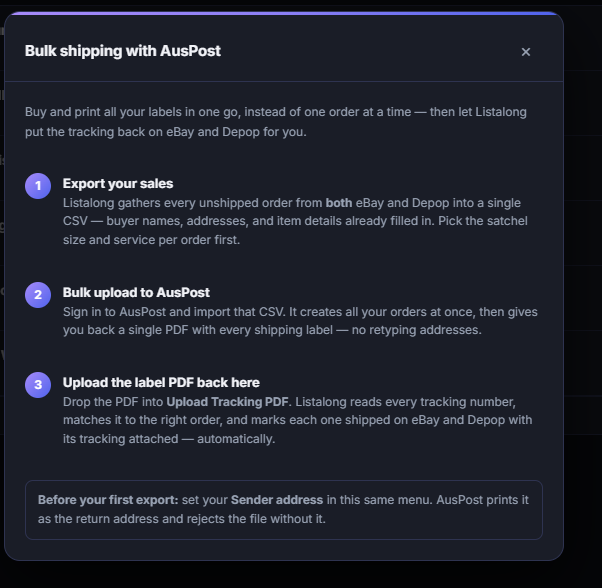
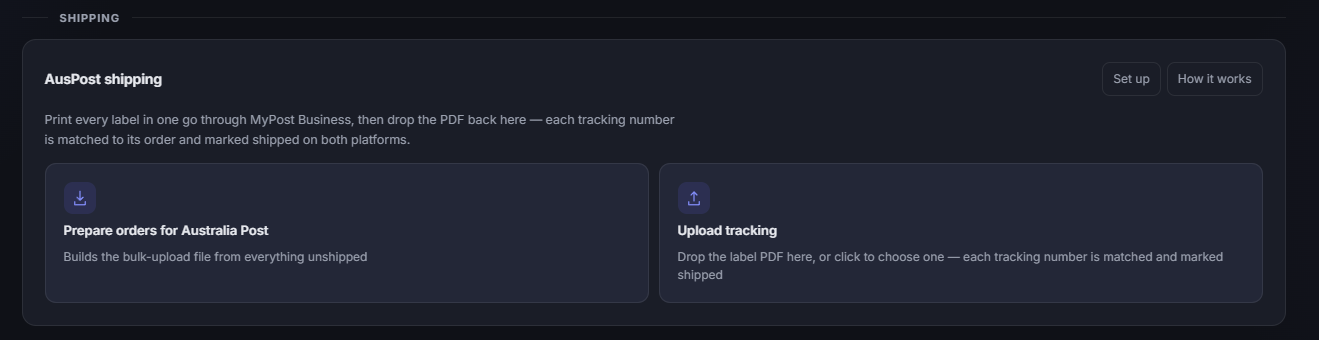
In your dashboard, scroll to Shipping and find the AusPost shipping panel. Use Set up to check your sender details, then select Prepare orders for Australia Post. The workflow gathers unshipped orders from eBay and Depop, so check that the final batch contains only orders you intend to send this way. How it works opens the instructions shown below.
Choose the relevant satchel or parcel option and service for each order before exporting. Use the actual packed dimensions and weight wherever those details are required. Confirm that the selected delivery service matches what the buyer purchased.
Keep the order, item and parcel together as you work. A combined batch is useful only if the right label ends up on the right package.
Step 2: Export the combined order CSV
Export your sales from Listalong. The CSV brings the available buyer, address and item information into one file for the Australia Post import.
A CSV is an order-data file, not a paid shipping label. Downloading it does not buy postage or tell Australia Post that your parcels are ready for collection.
Check the batch count against the orders you intend to dispatch. For example, if you prepared three eligible eBay orders and two eligible Depop orders, reconcile those five orders before paying for labels. Bundles and split shipments can change the relationship between items, orders and labels, so handle those deliberately.
Keep the exported references intact where possible. Unnecessary edits can make it harder to reconcile the label results with the original orders.
Step 3: Import into Australia Post MyPost Business
Sign in to MyPost Business and use its CSV import workflow. Upload the file, review the imported-order summary and fix any errors before proceeding.
Australia Post’s official CSV import guide explains its template fields and import validation. If a field is rejected, compare it with that guidance rather than repeatedly uploading the same unchanged file.
Before purchasing, review addresses, parcel details, services and the total charge. If the same orders also arrive through another integration, check for duplicates and keep only the intended shipments.
Step 4: Buy, print and attach the labels
Purchase the labels in Australia Post and save the resulting label PDF. Choose the print format that matches your printer and paper or label stock.
You do not need to buy a dedicated printer just to try this process. A regular printer can be suitable when used with the appropriate label layout. Follow the print instructions provided with the label and check that the barcode is clear and complete.
Attach each label flat to the correct parcel. Remove or fully cover old shipping labels and barcodes on reused packaging. Do one final item-to-order check before sealing or setting each parcel aside.
For a more detailed introduction to preparing an individual parcel, see the Depop shipping guide. This batch workflow uses the same care with packaging and addressing; it simply brings orders from both stores together.
Step 5: Upload the label PDF back to Listalong
Return to your dashboard’s Shipping → AusPost shipping panel. On the right, find Upload tracking. Drop the Australia Post label PDF onto that card, or click it to choose the file from your device. Listalong reads tracking details from the labels, matches them to orders and updates the matched marketplace orders with tracking and shipping status.
Use the original downloaded PDF rather than a photograph of printed labels or a payment receipt. Do not assume an unrelated carrier’s document will work through the Australia Post workflow.
Check the outcome after processing:
- Are the expected orders matched?
- Does each tracking number belong to the correct buyer and parcel?
- Did the tracking and shipping update reach the right marketplace?
- Are any orders unmatched or showing an error?
Resolve exceptions before considering the batch complete. If you need to enter tracking manually, verify the exact order, carrier and number in the marketplace rather than guessing a match.
Step 6: Lodge the parcels and keep your receipt
A purchased label and a marketplace shipping update are not proof that Australia Post has received the parcel. Upload the labels as part of your actual dispatch session, lodge promptly and keep proof of lodgement.
Check carrier tracking after handover. If a scan or delivery is delayed, use the carrier’s tracking and support process, and keep the buyer informed where needed.
Common batch-shipping problems
| Problem | What to check |
|---|---|
| Missing sender details | Set and verify your sender address before regenerating the export |
| CSV import error | Review the rejected field and Australia Post’s current template requirements |
| Too many imported orders | Look for an earlier import or another connected order feed before buying labels |
| Wrong service or parcel details | Correct them before purchase; if already purchased, follow Australia Post’s label correction or refund process |
| Label PDF does not match an order | Check that it belongs to this batch and contains the original labels; review order references and connection status |
| Tracking did not reach one store | Check the reported error and marketplace connection, then verify the order directly |
| A parcel has a label but no acceptance scan | Confirm physical lodgement; a label alone does not establish handover |
Does combining orders make the postage cheaper?
Combining the administration does not itself guarantee a lower postage price. The cost still depends on your parcel, chosen service, destination and the rates available to your Australia Post account.
The practical benefit is reducing repeated address entry, separate packing lists and tracking-number copying. Measure that saving with your own batch rather than assuming a fixed number of minutes per order.
Postage is paid separately from Listalong. Its current plans include the supported Australia Post workflow, with a 14-day trial starting when both eBay and Depop are connected. No card is required; continuing afterwards requires choosing a paid plan.
Try one small batch first
Start with a few eligible orders, follow them through export, label purchase, tracking updates and lodgement, and check each result. Once that works with your own packaging and printer, use the same routine for larger batches.
If you are still working out parcel options, read the eBay postage guide and Australia Post packaging comparison. This guide is about combining the work across stores, not replacing the delivery requirements of either marketplace.
Spend less time copying order details.
Try Listalong's combined Australia Post export and tracking workflow with your eligible eBay and Depop orders.
Start your 14-day trial No card required. Postage purchased separately. View Listalong plans.