
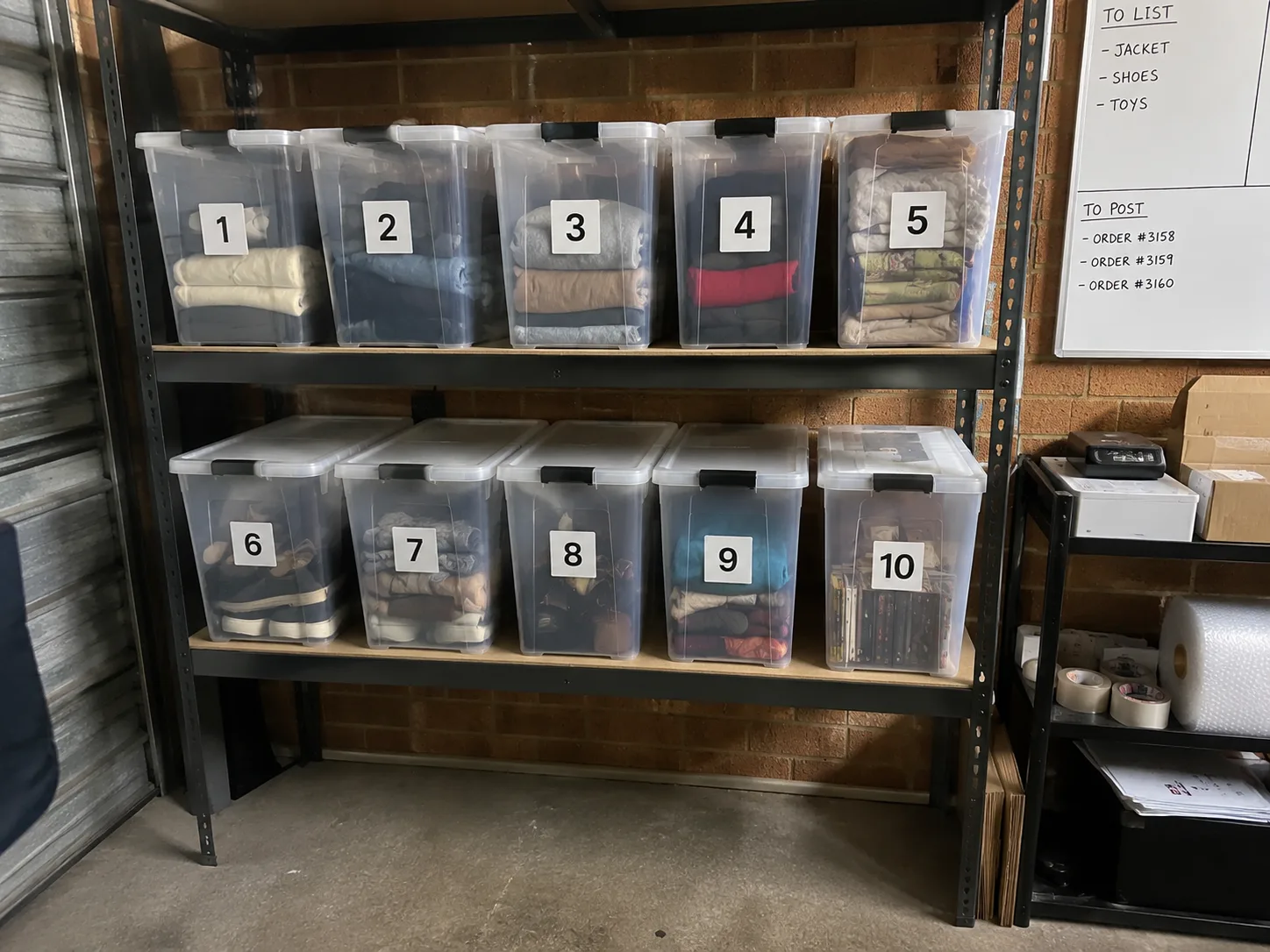
An eBay order comes in for a navy jumper. You have three navy jumpers in storage. A tub code in the listing’s SKU tells you which box to open. A size tag, an individual stock number or a detail in the listing photo tells you which jumper to pack. A QR label lets you capture the box code with your phone as you list. If you don’t have a coding scheme yet, start with our SKU system for eBay and Depop and the storage guide for resellers.
Start with one box and one eBay listing
Give the box a short code such as TUB-012. Print the code in large type alongside the QR symbol, and stick the label on the side you can see from the aisle. If the box sits under two others, a label on the lid is hard to read when you’re packing an order.
You can test the system by hand. Enter the box code in the listing’s Custom label (SKU) field, save it and put the jumper in that box. Open the saved listing and use the code to find it again. If you already use that field for a unique stock number, keep the number and record its tub in your inventory sheet. That preserves the link to your existing orders. Numbered tub setup and an example of the eBay custom label field.
Photograph the QR label in Listalong Snap
- Print a Snap storage label and attach it to the tub. Start with a label produced by the app so you can check that it recognises the code.
- Take the buyer’s photos first. For the navy jumper, photograph the front, back, size tag and the repair on the left sleeve.
- Take a separate photo of the tub label while you’re still on that jumper. Snap uses the recognised code in the eBay SKU and keeps the label photo private. Put the jumper in the tub before tapping Next item.
- Review the draft. Read the storage code and check the public photos. If you see no code or the code belongs to another box, put the draft aside and correct it before posting. Listalong Snap’s storage and photo instructions.
Pick the right item when it sells
Read the SKU on the sold listing and go to the matching box. eBay also includes a Custom Label column in its Seller Hub orders report for sellers with access to that report. For a morning with several orders, put the order reference beside the tub code and one detail you can check before packing. Here’s an example pick list. eBay Australia’s guide to Seller Hub order fields.
| Order reference (example) | Tub to open | Item to pick | Detail to check |
|---|---|---|---|
| A | TUB-012 | Navy wool jumper, M | Repair on left sleeve |
| B | TUB-012 | Navy cotton jumper, L | Ribbed neck and cotton care label |
| C | TUB-021 | Navy wool jumper, M | Short zip at neck |
For order A, the size alone would also match the jumper in TUB-021. Open TUB-012, check the sewn-in size and match the repair against the listing photo. Keep each picked garment with its order reference until you attach the postage label. If two items in the same box could still pass your check, give each one a removable bag label with its own stock number and record the number against the listing.
What happens when you move stock?
Moving a whole tub is easy. The label travels with the box. Moving one jumper changes where that listing points. Update its recorded location as you move it. If you use permanent item numbers and a separate location sheet, update the jumper’s row there. For a returned item, check its condition and record the tub you actually put it back into.
Before labelling a whole shelving unit, have someone pick one item using only its listing and the code. If they can find the right jumper without asking which shelf you meant, you’re ready to label the next tub. Try the QR label workflow in Listalong Snap, on the App Store or Google Play.