
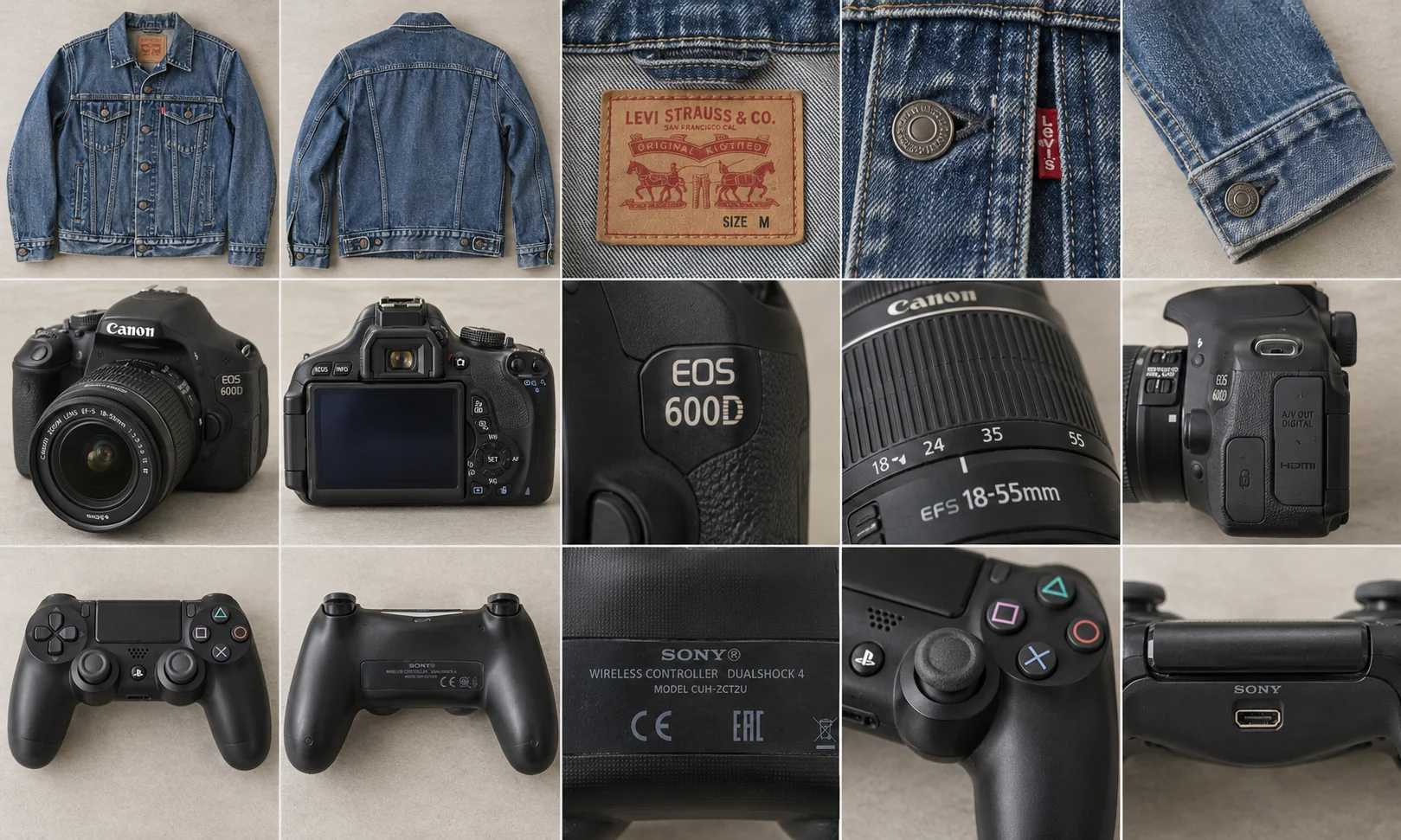
If your item photos are already in your Android gallery, you can import them into Listalong Snap instead of photographing everything again. Add the photos for one physical item, supply the details the images do not show, then review the suggested eBay listing.
This is useful when you have finished a photo session but still have a backlog of titles and descriptions to write. Download Snap for Android to try the import workflow. We make Snap; the checklist below is designed to help you avoid mixing items or publishing an old photo set that no longer matches your stock.
Start with one item you can still identify
Choose a photo set for an item you still physically have. Find the item before importing the pictures. Check that its condition and included accessories have not changed since the photos were taken.
For example, six photos of a black jacket may look complete until you discover there are two similar jackets in the tub. Match the label, fasteners and a distinctive detail to the actual garment.
If the photos are from a returned item, inspect it again. A clean-looking photograph from its first listing cannot establish its condition after the return.
Select the original item photos
Use the clearest original files you have, rather than screenshots of an old listing with text and interface elements around the item.
| Photo you find | What to do before importing |
|---|---|
| Clear front, back and detail photos of this item | Check they still represent its condition and included parts. |
| Two nearly identical items photographed together | Separate the sets using labels, distinguishing marks and your physical stock. |
| Old images taken before a repair or cleaning | Photograph the current result and remove misleading older views. |
| Pictures of a sold item | Set them aside; a photo set does not mean the stock is available. |
| Another seller’s images or retailer screenshots | Take your own item photos rather than treating the screenshot as evidence. |
For used items, eBay’s selling practices policy requires photographs of the actual item. Its images and text policy explains the rules for third-party content.
Import a single photo set into Snap
Open the existing-photo import option and choose the images for the first item. Check the selected thumbnails before moving on. Do not assume a mixed selection will be automatically divided into separate items.
Within that item, remove duplicates and put a useful overall view first. Retain close-ups of labels, damage and included accessories. If a required detail is missing, take an additional photograph while you still have the item nearby.
Only then move to the next item and its photo set. The useful checkpoint is simple: all photos in this draft must belong to the same physical item and the same sale offer.
Our photo checklist can help you spot missing views. More photos of the front do not compensate for an unreadable model label or an undisclosed broken part.
Supply the missing information before generating
Old photos are often missing the context you remembered at the time. Add concise seller notes about working condition, measurements, accessories and known faults.
An illustrative camera note might say:
Camera body and lens cap only. No battery or charger included. No power or shutter testing completed. Scuff beside the strap lug, shown in the side photo.
That note must describe what you actually know. A photograph showing the camera switched on would support a different, limited observation; it would still not establish that every function works.
Read the generated draft against both the photographs and the note. Remove any unsupported statement such as “fully tested”, “complete kit” or a guessed material.
Check whether the item is already listed
Before publishing from an older photo set, search your active stock records. If the same item already has an eBay listing, decide whether you need to edit that listing rather than create another advert.
Snap’s photo import is not a way to move or update an existing live listing automatically. It prepares a new draft from the supplied material. For a single item, duplicate adverts can create confusion about which listing and storage record to use.
If you previously submitted the draft and are unsure whether it succeeded, inspect your eBay listings and the app’s status before submitting it again.
Review the offer, then publish
Check the category, item specifics and condition option. Research a current price rather than copying an old asking amount. Confirm postage using the item and packaging you will actually send.
Snap prepares eligible fixed-price, single-item listings. For other selling formats, use eBay’s appropriate listing tools. Publish your first imported item on its own and inspect the resulting advert before preparing a larger group.
The batch-listing guide covers organising a larger session once the import-and-review routine works for you.
Put one existing photo set to work
Eligible new accounts start with 300 free credits to try Snap. Generating drafts uses credits; check the balance and current pricing in the app. A Listalong crosslisting subscription is not required for the eBay listing workflow.
Get Listalong Snap on Google Play and start with one photo set you can match confidently to the item. If the photos need replacing, do that first; importing is useful when the evidence is already good.
Product details and linked eBay policies checked 10 November 2026. The camera note is an illustrative example, not a description of tested stock. Cover: illustrative product-photo sets used in the Snap demonstration.